






Have you ever wondered whether there are features in Windows that you don’t make full use of, or that are just unnecessarily „fancy”? Would you be happy with something simpler, but would you like your computer to respond more quickly? We’ve put together a few options for you to choose from to give your computer’s performance a bit of a boost.
To start with, we’ve put together some tips to help you organise your storage space and the apps running in the background.
We generally work with English-language systems the most, and we recommend this to anyone who can, so the items in the screenshots and descriptions will be listed by their English names; however, everything will be easy to find from the images even if you’re using your system in a different language. (We hope) Our examples are taken from Windows 11, but in many cases you’ll find most of these options on Windows 10 as well.
Tip 1: Check your programmes that start automatically
„Well, I just don’t want anything to start up here!” If you feel the same way, it’s worth checking which applications start up with the system. You probably won’t need all of them, and they’ll unnecessarily take up resources from your more important tasks, both at start-up and during your daily work.
- Open the Task Manager [Ctrl] + [Shift] + [Esc] by pressing the keys or by right-clicking on the taskbar and selecting Task Manager from the pop-up menu.
- Switch to the „Startup Apps” tab.
- Here, you need to look for the „Status” column and check the items where the status is shown as „Enabled”.
- Select the software that you don’t think needs to start automatically at boot-up and right-click on it.
- Click the „Disable” button.

Tip 2: Remove any unnecessary programmes from your computer
It may seem trivial, but it’s still worth going through them from time to time, as you’ll free up storage space and other resources at the same time by getting rid of programmes you no longer need – or perhaps ones that someone else installed for you, but which you think they were wrong to do. The easiest way to find them is probably here:
- [Windows] key + [X]
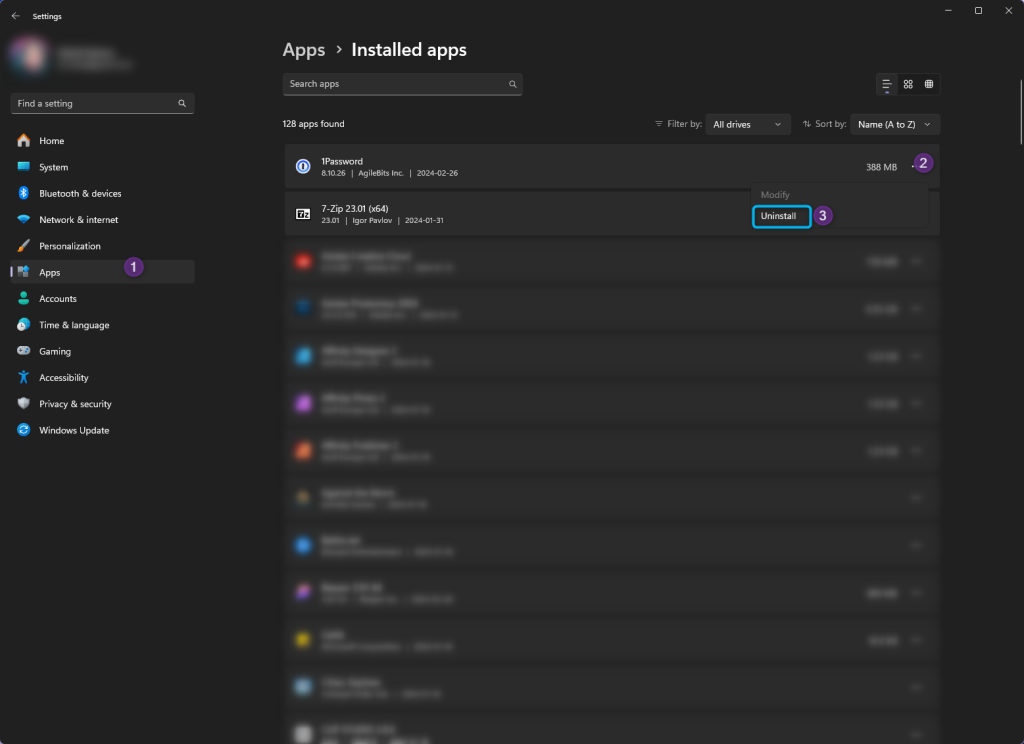
- Click on „Installed apps”.
- Here, you can use the „Uninstall” button to remove any software you no longer need.
Tip 3: Update Windows
This is another obvious point – and on client machines, this often runs automatically in the background – but it is definitely worth checking manually from time to time to ensure that the updates have been installed. From both a security and performance perspective, it is particularly important to ensure that your operating system remains up to date at all times. Here’s how you can easily check:
- Right mouse button on the Start menu.
- Select the „Settings” option.
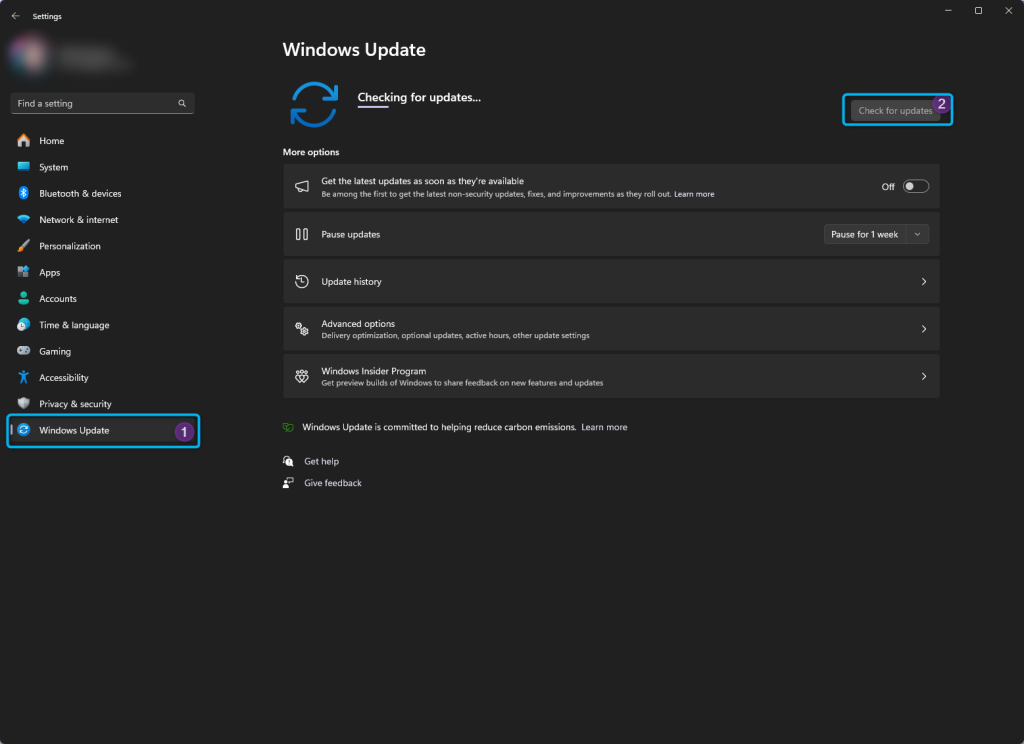
- On the left-hand side, click on the „Windows Update” to the ear.
- You’ll find the „Check for updates” button. Go ahead and press it.
- After that, any available updates (if there are any) will appear, and you can install them by clicking on them.
Tip 4: Deleting unnecessary files
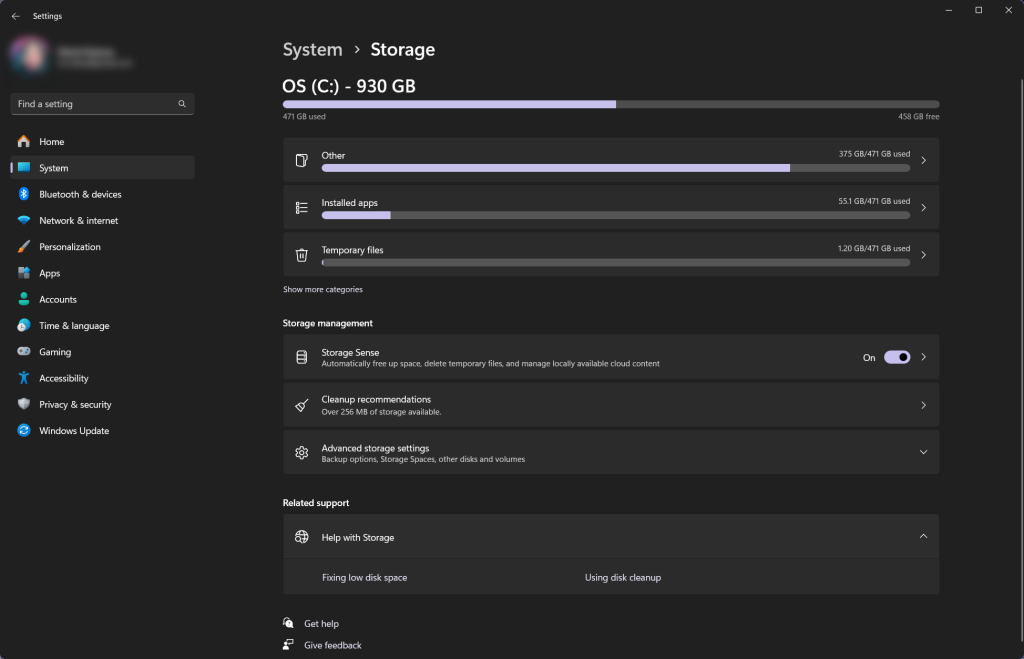
Even if you haven’t run out of storage space, it’s still worth keeping things tidy here, as many applications – and your operating system itself – will use your free storage space to run more quickly. In Windows, the easiest and most user-friendly solution for this is the legendary „Storage Sense”. Whatever the reason for its name.
Here’s how you can meet him:
- Right mouse button on the Start menure.
- Select the „Settings”-t.
- On the left, select the „System” tab, then look for the „Storage” menu item.
Within this, you’ll have several options. Here, you can easily see what’s currently taking up space, and you can set Storage Sense to clear out the Downloads folder for you – even automatically.
„Cleanup recommendations”There, you can see what simple suggestions the system offers for freeing up storage space.
This interface will primarily display your system drive, but if you want to drill down further, you can also view your other drives via the „Advanced storage settings”in.
Tip 5: Disable file indexing
We recommend this if your computer is very slow and you need to try everything, or if you’ve never searched for anything on your computer before. In short, this isn’t always the best solution, as it will make searching for files on your computer even slower, but if this is a feature you don’t use, it might be worth turning it off. Here’s how to do it:
- Click in the search box on the taskbar or click the Start menu and start typing to services.msc.
- Press Enter.
- The Services app will open; scroll down until you find the „Windows Search” service called [name].
- Right-click on it and select „Properties”.
- Change the startup type „Disabled”- i.e. prevent the service from starting.
- And throughout all this, the „Stop” You can also stop the current run using the button.
- After that, it’s worth restarting your computer and checking the service again in „Services” to see if it has been successfully stopped. The ‘Service status’ should now show ‘Stopped’.

Extra tip: Turn off the tips (Ironic, isn’t it?)
Windows 11 really likes to keep an eye on what you’re doing and tell you how you should be doing it better. You’ll get plenty of ‘Did you know?’ messages and the like. If you think you know best, it might be worth getting rid of this too. Here’s how:
- The right mouse button is back on the Start menure.
- Select the „System”-et.
- On the right-hand side of the window, look for „Notifications” and click on it.
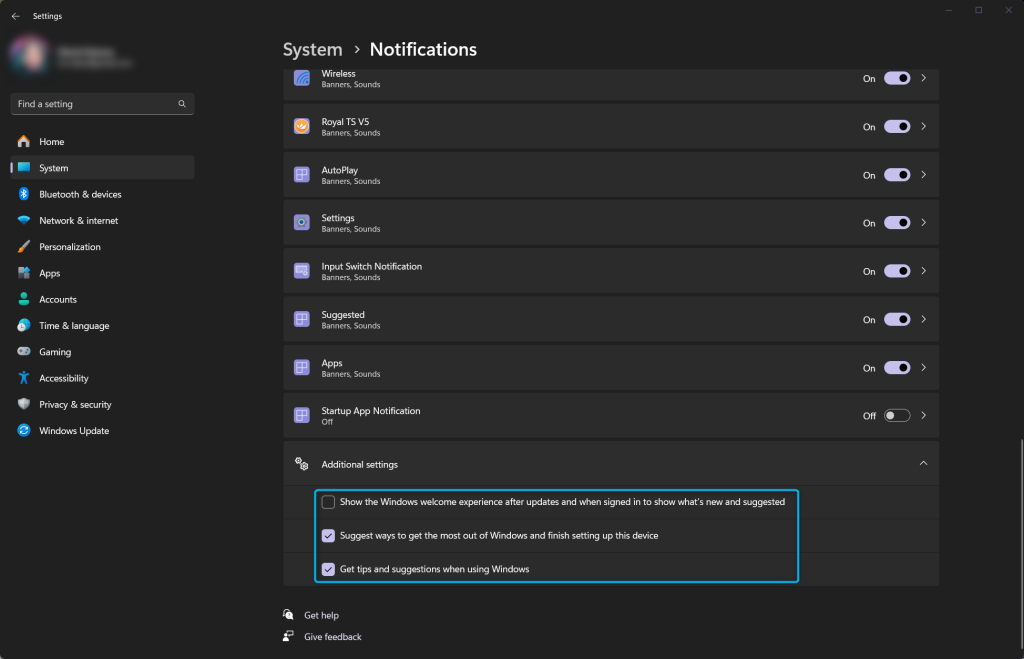
- Scroll through this long list and you’ll find an „Additional settings” option at the bottom – tap that. (Incidentally, this is where you’ll find all your notifications, so if any app has been driving you mad, you can switch it off here using the on/off button next to the app’s name)
- You’ll find three options here, and you can disable all three if you like. This will also allow you to get rid of most of the welcome screens and offers that appear after updates. You’re welcome.